
Download 4TOPS Compare Excel Files – Free Trial for Windows (Secure, Fast & Reliable)
Looking for a reliable way to compare Excel files quickly and accurately? 4TOPS Compare Excel Files is a powerful, lightweight software designed specifically for Windows users who work with multiple spreadsheets. Whether you're an accountant reconciling financial reports, a data analyst verifying datasets, or a business professional managing project timelines, this tool streamlines the comparison process with precision.
With support for both .xls and .xlsx formats, it checks not just cell content but also formatting, formulas, and comments—ensuring no discrepancy goes unnoticed. The intuitive wizard guides you through each step, making it accessible even for beginners. Best of all, the free trial version lets you test all features before purchasing.
Run it on Windows XP or later, and enjoy a secure, resource-efficient experience. Perfect for anyone who values data accuracy and time savings.
Key Features of 4TOPS Compare Excel Files
4TOPS Compare Excel Files stands out in the crowded field of Excel comparison tools thanks to its comprehensive feature set. One of its most powerful capabilities is the ability to compare not just cell values, but also formatting, formulas, and comments across two Excel files. This ensures that even subtle changes—like a bolded header or a modified calculation—are flagged for review. The software supports both legacy .xls and modern .xlsx file formats, giving users flexibility regardless of their file source.
Another standout feature is its real-time visual highlighting. When differences are detected, they’re instantly color-coded, making it easy to scan and understand discrepancies at a glance. This is especially useful when reviewing large datasets or auditing financial records. The built-in wizard simplifies the process, walking users through selecting files, choosing comparison criteria, and reviewing results—all without needing technical expertise.
Additionally, the tool allows comparisons within the same workbook or across different files, which is ideal for tracking changes over time or validating data migration. It’s lightweight and optimized for performance, ensuring it doesn’t slow down your system even when handling large spreadsheets. With its focus on accuracy, speed, and ease of use, 4TOPS Compare Excel Files delivers a seamless experience for professionals and casual users alike. Whether you're preparing for an audit, updating reports, or simply ensuring consistency, this tool helps you work smarter, not harder.
How to Install and Use 4TOPS Compare Excel Files
Installing 4TOPS Compare Excel Files is straightforward and takes just a few minutes. First, download the trial version from a trusted source like Softonic or the official 4tops website. The installer is small and runs smoothly on Windows XP and above. Once downloaded, double-click the setup file and follow the on-screen prompts. The installation process is quick and doesn’t require advanced configuration.
After installation, launch the application. You’ll be greeted by a clean, intuitive interface with a step-by-step wizard to guide you through the comparison process. Begin by selecting the two Excel files you want to compare—either from the same workbook or separate files. The tool will automatically detect the file types (.xls or .xlsx) and load them into the comparison engine.
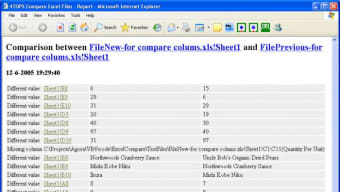
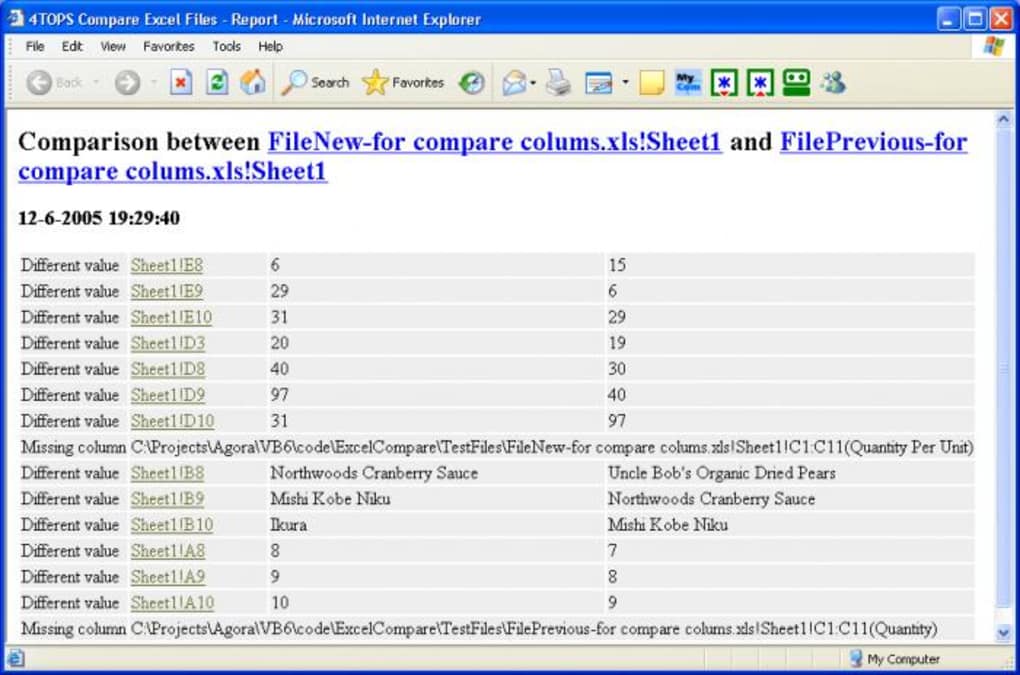
Next, choose your comparison settings. You can opt to compare cell values, formatting, formulas, comments, or a combination of all. This flexibility ensures you can tailor the scan to your specific needs. Once settings are configured, click “Start Comparison.” The software processes the files and displays the results in a side-by-side view, with differences clearly highlighted in color.
From there, you can review discrepancies, export the comparison report to a new Excel file, or save it as a PDF for sharing. The entire workflow—from setup to reporting—is designed to be intuitive and efficient, even for users with limited technical experience. With just a few clicks, you can identify errors, track changes, and ensure data integrity across your spreadsheets.
Compatibility and System Requirements
4TOPS Compare Excel Files is specifically designed for the Windows operating system and runs seamlessly on Windows XP and all subsequent versions, including Windows 7, 8, 10, and 11. This broad compatibility makes it a reliable choice for users in both corporate and home environments, regardless of their system setup.
The software is lightweight, requiring minimal system resources. It doesn’t rely on heavy background processes or additional runtime libraries, which means it won’t slow down your computer during operation. A stable internet connection is not required for basic comparison tasks, though it may be needed if you’re downloading updates or accessing online support resources.
It supports the most widely used Excel file formats: .xls (older Excel format) and .xlsx (modern Excel format). This ensures compatibility with files created in Microsoft Excel 2003 through the latest versions. The application is available only in English, so users should be comfortable with English-language interfaces and documentation.
For businesses or individuals managing large volumes of Excel files, the ability to run this tool on older systems is a major advantage. It’s ideal for organizations that haven’t yet upgraded to newer operating systems or those using legacy software. Whether you're comparing quarterly reports, validating data imports, or auditing spreadsheets, 4TOPS Compare Excel Files delivers consistent performance across different Windows environments.
Pros and Cons of 4TOPS Compare Excel Files
- Pros:
- Compares cell values, formatting, formulas, and comments
- Supports both .xls and .xlsx file formats
- Intuitive wizard for easy navigation
- Real-time visual highlighting of differences
- Lightweight and fast, low system resource usage
- Free trial available with full feature access
- Runs on Windows XP and later
- Cons:
- Only available for Windows (no Mac, Android, or iOS versions)
- Interface is only in English
- No cloud integration or automatic update notifications
- Limited reporting customization options
- Free trial does not include advanced export formats
Frequently Asked Questions (FAQ)
Is 4TOPS Compare Excel Files free to use?
Yes, a free trial version is available that allows you to test all features without any limitations. However, to continue using the software beyond the trial period, you must purchase a license. The trial is ideal for evaluating the tool’s performance before committing.
Can I compare two Excel files with different formats?
Yes, 4TOPS Compare Excel Files supports both .xls and .xlsx formats. You can compare a legacy .xls file with a modern .xlsx file without any issues, making it versatile for users working with mixed file types.
Does it work on Windows 11?
Yes, the software is fully compatible with Windows 11, as well as Windows 10, 8, 7, and XP. It runs efficiently on modern systems and is optimized for performance across different Windows versions.
Can I export the comparison results?
Yes, you can export the comparison report to a new Excel file or save it as a PDF. This makes it easy to share findings with colleagues, include in audits, or archive for future reference.
Is there a Mac or mobile version available?
Currently, 4TOPS Compare Excel Files is only available for Windows. There are no official versions for Mac, Android, or iOS. However, users on other platforms can run Windows via virtualization or compatibility layers, though this is not officially supported.
Final Verdict: Is 4TOPS Compare Excel Files Worth It?
For Windows users who frequently work with Excel files, 4TOPS Compare Excel Files is a must-have tool. Its ability to detect subtle differences—down to formatting and formulas—makes it ideal for data integrity checks, audits, and reconciliation tasks. The intuitive wizard and real-time highlighting ensure a smooth experience, even for non-technical users.
While it lacks cross-platform support and cloud integration, its strengths in accuracy, speed, and compatibility with older Windows systems make it a reliable choice. The free trial allows you to test the software risk-free, so you can be confident in your decision before purchasing.
? Download 4TOPS Compare Excel Files today and take control of your Excel data with confidence.







